Customer guide

Learn WA TARANG, step by step.

A practical guide for business owners and teams—from choosing a plan and connecting WhatsApp to sending campaigns and building automations.

START HERE

From account to your first customer conversation.

After payment, complete the short business setup, connect your own Meta WhatsApp number, then invite your team and start messaging.

Create your workspace
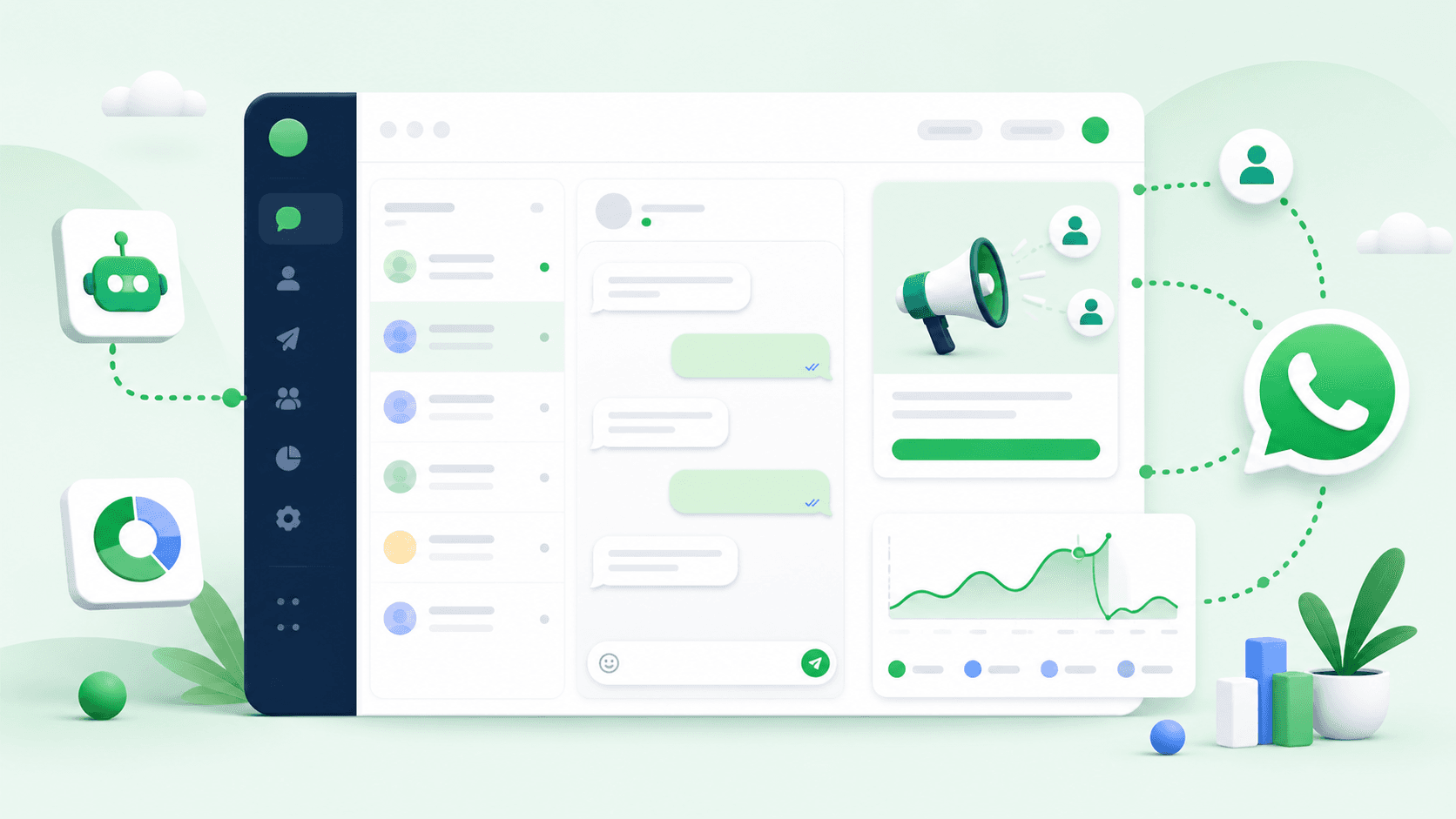
Illustration of a WhatsApp business workspace

Connect your WhatsApp number

5 minutes

  1. 1Open Settings → WhatsApp.
  2. 2Choose My Own WhatsApp API.
  3. 3Select Connect WhatsApp with Meta and finish the secure Meta login.
  4. 4Choose the WhatsApp Business Account and number you want to connect.
  5. 5Return to WA TARANG and confirm the connected number.
Open this area

Add contacts and message templates

10 minutes

  1. 1Open Contacts and import a CSV or add a contact manually.
  2. 2Use tags to organise your audience.
  3. 3Open Templates and create a Meta-compliant message.
  4. 4Wait for approval before using the template in a broadcast.
Open this area

Set up your shared inbox

3 minutes

  1. 1Open Inbox to see all customer conversations.
  2. 2Assign each chat to a teammate.
  3. 3Use internal notes for context your customer cannot see.
  4. 4Mark conversations open, pending, or resolved.
Open this area

Send your first broadcast

10 minutes

  1. 1Import contacts from Contacts or add them one at a time.
  2. 2Create an approved WhatsApp template in Templates.
  3. 3Open Broadcasts, select the template and audience.
  4. 4Review the audience count, then schedule or send.
Open this area

Automate customer follow-up

15 minutes

  1. 1Open Automations and choose a trigger.
  2. 2Add a delay, message or action.
  3. 3Test the automation with a sample contact.
  4. 4Turn it on and monitor activity in Analytics.
Open this area

Track performance and improve

5 minutes

  1. 1Open Analytics to monitor delivery, reads and replies.
  2. 2Compare broadcast results by audience and template.
  3. 3Check Logs when a workflow or webhook needs review.
  4. 4Use these insights to improve the next campaign.
Open this area

Manage your plan and billing

3 minutes

  1. 1Open Settings → Billing.
  2. 2Choose a plan that matches your team size.
  3. 3Pay securely through the configured payment gateway.
  4. 4Review invoices and payment history from the billing area.
Open this area

Use the API and webhooks

15 minutes

  1. 1Open Developers → API Keys and create a scoped key.
  2. 2Read the endpoint examples in Developer Docs.
  3. 3Add a webhook URL in Settings → Webhooks.
  4. 4Verify the signature before processing every webhook.
Open this area